
Storage Confusion: SSD vs. HDD and When Each Makes Sense

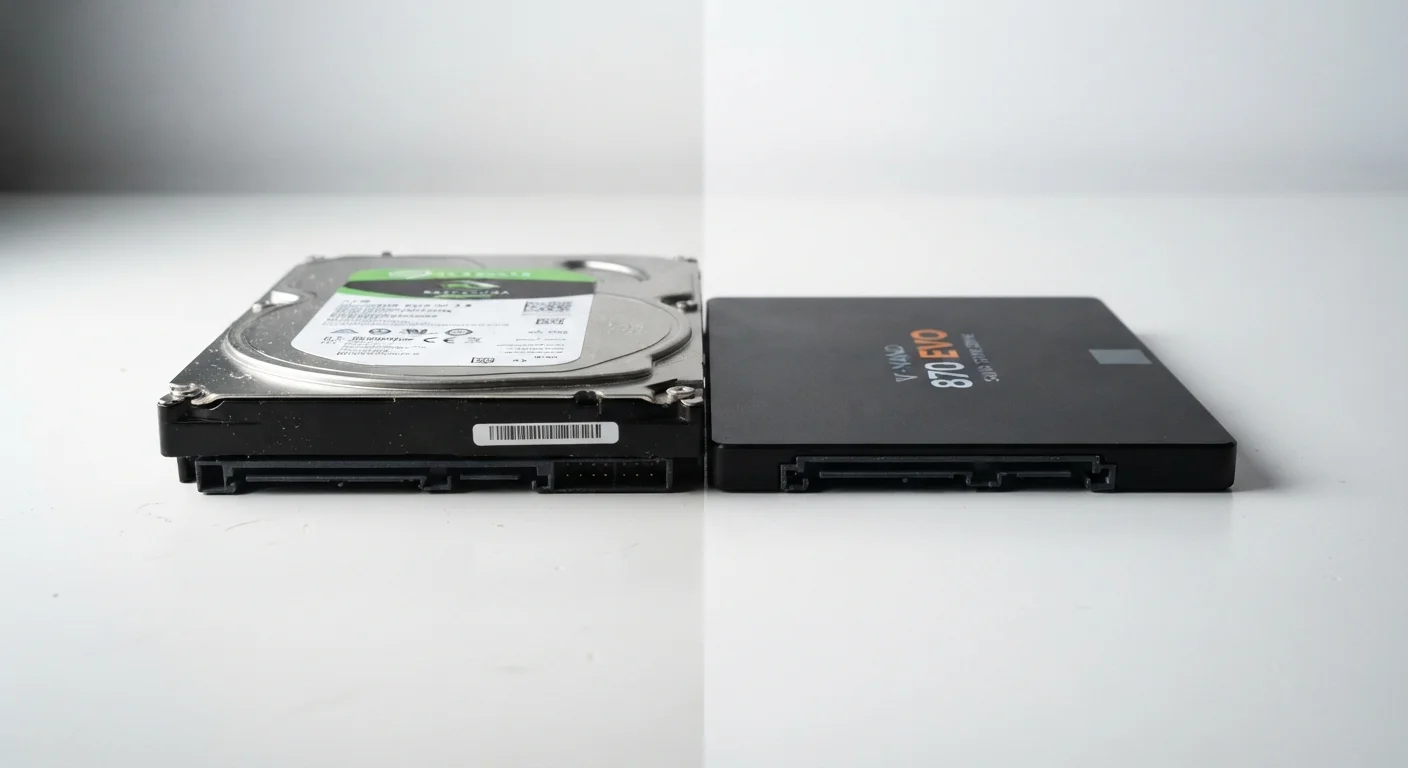
Photo: NemoFinds.com | Search, Explore, Read. editorial
Key Takeaways
- SSDs use flash memory chips; HDDs use spinning magnetic platters — this difference drives almost every trade-off.
- SSDs are significantly faster at reading and writing data, which directly affects how quickly your device boots and opens files.
- HDDs typically offer more storage capacity for the same price, making them practical for large archives and backups.
- SSDs have no moving parts, making them more resistant to drops and physical shock.
- For most everyday laptops and desktops, an SSD is now the practical default — HDDs remain useful as secondary or external storage.
How Each Type of Storage Actually Works
The core difference between an SSD and an HDD is physical. A hard disk drive contains one or more rigid magnetic platters that spin at high speed — typically 5,400 to 7,200 RPM — while a read/write head moves across the surface to access data. This is the same fundamental technology that has powered computer storage for decades.
A solid-state drive, by contrast, has no moving parts at all. It stores data on interconnected flash memory chips — the same general category of storage used in smartphones and USB drives. When you request a file, the SSD retrieves it electronically rather than physically, which is why the speed difference is so dramatic.
That mechanical process in an HDD introduces real limitations: it takes measurable time for the platter to spin up, and for the read head to physically move to the right location. SSDs eliminate both of those delays entirely.
| Criterion | SSD | HDD |
|---|---|---|
| Technology | Flash memory chips, no moving parts | Spinning magnetic platters with read head |
| Read/write speed | Very fast | Moderate |
| Durability | High — resistant to shock and vibration | Lower — vulnerable to physical impact |
| Cost per gigabyte | Higher | Lower |
| Noise | Silent | Audible during operation |
| Typical use case | Primary system drive | Bulk or backup storage |
Speed, Durability, and Capacity: The Real Trade-Offs
Speed: SSDs are substantially faster than HDDs for virtually every task — booting up, opening applications, saving files, and running multiple programs at once. On a typical system, an SSD can read data at several times the speed of a conventional hard drive. For day-to-day computing, this translates to a noticeably more responsive experience.
Durability: Because HDDs rely on spinning parts, they are vulnerable to physical shock. Dropping a laptop while the drive is active can damage the read head and cause data loss. SSDs are significantly more resilient to movement and impact, which is one reason they became the default in portable devices well before desktops.
Capacity and cost: HDDs still win on the cost-per-gigabyte calculation. A multi-terabyte HDD remains considerably more affordable than an equivalent SSD, which makes HDDs a sensible choice for bulk storage — external backup drives, home media servers, or archiving large video files.
~500 MB/s
Typical SATA SSD sequential read speed
A standard SATA SSD reads data at roughly 500 MB/s, compared to around 100–150 MB/s for a typical 7,200 RPM HDD.
3,000–7,000 MB/s
NVMe SSD sequential read speed range
High-performance NVMe SSDs can read data several times faster than SATA SSDs, making them the preferred choice for demanding workloads.
Noise and heat: HDDs produce audible noise during operation and generate more heat due to their mechanical components. SSDs run silently and cooler, which can contribute to quieter, longer-lasting devices over time.
Matching Storage Type to How You Actually Use Your Device
For most people buying a laptop or desktop computer today, an SSD as the primary drive is a reasonable expectation. The speed and reliability advantages are meaningful enough that HDDs have largely been phased out of new mainstream laptops.
Where HDDs retain genuine value is in secondary or external storage roles. If you photograph or film extensively, maintain large music or film libraries, or run regular system backups, pairing an SSD-equipped primary computer with an external HDD for bulk storage is a practical, cost-effective approach.
It's also worth understanding that not all SSDs are the same. Drives connect via different interfaces — SATA and NVMe (Non-Volatile Memory Express) are the most common. NVMe SSDs, which plug directly into a slot on the motherboard, are faster than SATA SSDs, which use the same connection type as older HDDs. When evaluating a device's specifications, look for the connection type if speed is a priority.
When purchasing electronics, the storage type is rarely the only factor — screen, processor, and RAM all matter too. For practical guidance on choosing the right place to buy, see our guide to online vs. in-store shopping, which covers how to evaluate product specs before committing.
A Note on Longevity and Write Endurance
The content on this site is for informational purposes only and is not a substitute for professional advice. Always consult a qualified professional for guidance specific to your situation.