
Understanding Ports: HDMI, USB-C, DisplayPort, and What Goes Where

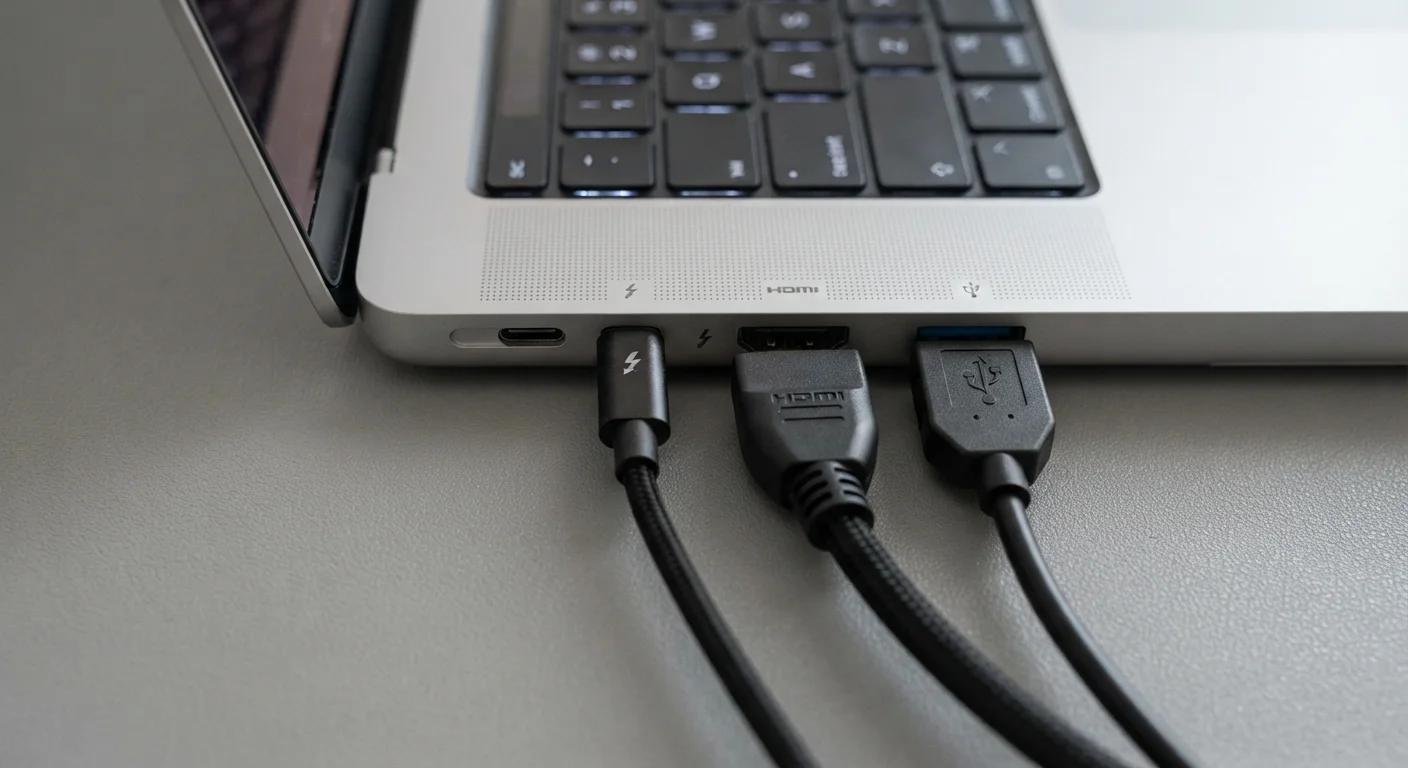
Photo: NemoFinds.com | Search, Explore, Read. editorial
Key Takeaways
- HDMI is the dominant standard for connecting TVs, monitors, and projectors to video sources.
- USB-C is a connector shape — what it can actually do depends on the device and cable.
- DisplayPort is common on computer monitors and graphics cards, often supporting higher refresh rates.
- Not all USB-C ports support video output — check your device's specs before assuming.
- Adapters let you bridge between port types, but they can't add capabilities the source port lacks.
Why Ports Matter More Than You Think
Ports are the physical gateways that let your devices talk to each other — to share video, transfer files, deliver power, and connect peripherals. Choose the wrong cable or misidentify a port, and nothing works. Understand them, and you can confidently connect a laptop to a monitor, a game console to a TV, or a phone to a charger without guesswork.
This guide is part of a broader orientation to consumer electronics for people who want straight answers without wading through spec sheets. If you encounter unfamiliar terms as you read, the Consumer Electronics Glossary is a useful companion reference.
HDMI
High-Definition Multimedia Interface — a port and cable standard that carries both video and audio signals over one connection, widely used for TVs, monitors, and media devices.
USB-C
A small, reversible connector shape used on many modern devices. What it can do — charge, transfer data, output video — depends on the specific device and port implementation.
DisplayPort
A video and audio connection standard found primarily on computer monitors and graphics cards, typically supporting higher refresh rates than equivalent HDMI versions.
Thunderbolt
A high-speed connection protocol from Intel that uses the USB-C connector shape but delivers faster data transfer and more capabilities than standard USB-C.
DisplayPort Alternate Mode
A feature that allows certain USB-C ports to output video signals, enabling connection to monitors or TVs via an appropriate adapter or cable.
Power Delivery (PD)
A USB-C charging standard that allows higher wattage power transfer — important for charging laptops and larger devices quickly through a USB-C port.
HDMI: The Standard for Video and Audio
HDMI — High-Definition Multimedia Interface — is the rectangular, slightly trapezoidal port you'll find on televisions, monitors, projectors, laptops, game consoles, and streaming sticks. It carries both video and audio over a single cable, which is why it became the default for home entertainment.
There are a few version numbers to be aware of. HDMI 2.0 handles 4K video at up to 60 frames per second, which covers most home TV and streaming scenarios. HDMI 2.1 increases that ceiling significantly, supporting 4K at 120Hz and 8K at 60Hz — relevant if you're connecting a newer game console or a high-refresh-rate monitor. The version is determined by both the port on your device and the cable you use; a 2.1 port paired with an older cable won't deliver 2.1 performance.
There's also a smaller variant called Mini HDMI (Type C) and an even smaller Micro HDMI (Type D), found on some cameras and older tablets. These are less common but function the same way — just with different physical sizes.
For a deeper look at how resolution interacts with your display, see our guide on what screen resolution numbers actually mean.
USB-C: The Port That Does (Almost) Everything
USB-C is a connector shape — small, oval, and reversible (no wrong way to plug it in). That's the easy part. The harder part: what a USB-C port actually does varies enormously depending on the device and the specific implementation.
A USB-C port can potentially handle data transfer, video output, and power delivery — but only if the device supports those functions. Many USB-C ports on budget laptops or accessories only carry data, not video. Others support DisplayPort Alternate Mode, which lets you send a video signal to a monitor through a USB-C to DisplayPort (or USB-C to HDMI) cable or adapter. High-end ports may support Thunderbolt, Intel's faster protocol that uses the same physical connector but delivers significantly higher data speeds and more versatility.
Quick USB-C Check Before You Buy an Adapter
The practical takeaway: don't assume a USB-C port does everything just because it looks like others you've used. Check your device's manual or manufacturer's specs page for what that specific port supports. This is one of the most common sources of frustration when cables or adapters don't behave as expected.
DisplayPort: The Monitor-First Standard
DisplayPort is a port designed primarily for connecting computers to monitors. It's common on desktop graphics cards, gaming monitors, and many business laptops. Physically, it has a distinctive flat edge on one side (unlike HDMI's symmetrical trapezoid).
DisplayPort generally supports higher refresh rates than comparable HDMI versions, which is why it's preferred by PC gamers running monitors at 144Hz, 165Hz, or higher. DisplayPort 1.4 can handle 4K at 144Hz or 8K at 60Hz, and the newer DisplayPort 2.1 standard pushes those limits further.
There's also Mini DisplayPort, a smaller version found on older Apple computers and some compact PCs. It functions identically — just requires a different cable or adapter end.
One important note: DisplayPort cables are generally not interchangeable with HDMI cables even though they serve similar purposes. You'd need an active adapter to convert between the two signals in most cases. For context on how display technology and connections work together, our plain-language screen technology comparison covers what's happening on the other side of the cable.
Older Ports You'll Still Encounter
Not every device you own is cutting-edge, and some workplaces and classrooms still rely on older connection standards. A few worth knowing:
- USB-A — the classic rectangular USB port. Common on chargers, older laptops, and desktop computers. USB-A ports transfer data and power but cannot carry video signals natively.
- VGA — an older analog video standard with a distinctive 15-pin blue connector. Still found on older projectors and monitors. It carries video only (no audio), and image quality tops out at 1080p.
- DVI — a step up from VGA, found on older monitors and graphics cards. Carries digital video; some variants also support analog. Rarely seen on equipment made in the last several years.
- 3.5mm audio jack — not a video port, but worth mentioning since it's often grouped with other ports. Carries analog audio only.
If your device has only a VGA or DVI output and you need to connect to a modern HDMI monitor, adapters exist — but be aware that the older analog signal from VGA may result in softer image quality. Our related piece on why cables stop working explains how signal degradation and adapter quality affect real-world results.
Matching the Right Cable to the Right Port
The most common mistake people make is assuming any cable that fits physically will work correctly. Physical fit is only half the equation — the cable also needs to support the data protocol and bandwidth required for your use case.
A few practical rules:
- Match the port type first. Identify what ports your source device (laptop, console, media player) and destination device (TV, monitor) have. If they share a port type, use that cable directly.
- Check cable version for video. For HDMI, a High Speed or Premium High Speed cable handles 4K. For DisplayPort, version 1.4 or higher handles 4K at high refresh rates. Cable packaging should state this clearly.
- Use adapters conservatively. A USB-C to HDMI adapter works only if your USB-C port supports video output. An adapter cannot add a capability that the port itself lacks.
- Don't assume USB-C cable quality. A USB-C cable that came with a phone charger may only support USB 2.0 speeds. For video or fast data transfer, use a cable explicitly rated for those purposes.
Cheap Adapters Can Degrade Signal Quality
For further reading on how wired connections compare to wireless alternatives in real-world use, see our guide on wired vs. wireless trade-offs.
Frequently Asked Questions
The content on this site is for informational purposes only and is not a substitute for professional advice. Always consult a qualified professional for guidance specific to your situation.